Background
My Alibaba Cloud subscription expired, so I had to move the site. I encountered several problems during the migration and have collected the solutions here.
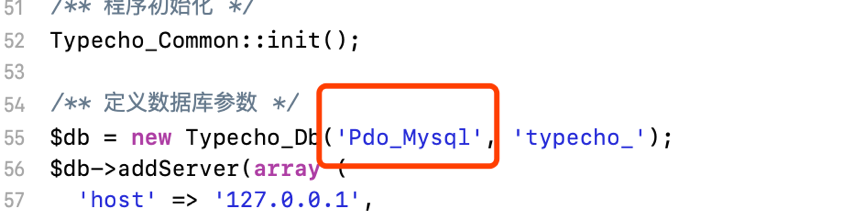
1. '500 Database Query Error'
Around line 55 of config.inc.php, change the database type from Mysql to Pdo_Mysql.
2. 'Error establishing a database connection'
- Confirm that the database service is running.
- Check whether the database service has been started.
- The database configuration is incorrect.
- Inspect config.inc.php and verify that its database configuration is correct.
- The database version is too new; versions above 8.0 fail here. This was a major trap. I initially used yum search mysql and installed the available package, only to discover it was MySQL 8.1. Every connection attempt returned 'Error establishing a database connection.' After removing it and installing MySQL 5.7 instead, the site returned to normal.
3. Installing MySQL on Alibaba Cloud
1. Downloads from Alibaba Cloud's Yum mirror are painfully slow.
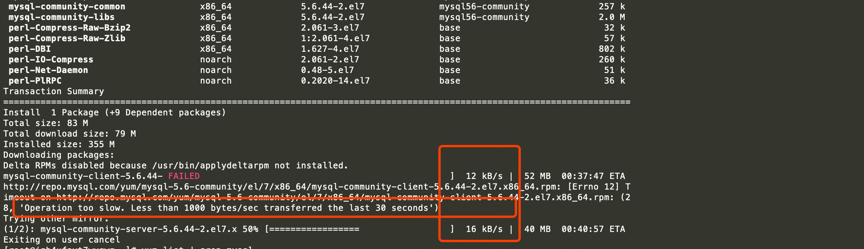
Some attempts even failed with 'Operation too slow. Less than 1000 bytes/sec transferred the last 30 seconds.'
The only option was to follow the download URLs and fetch the four RPM files locally:
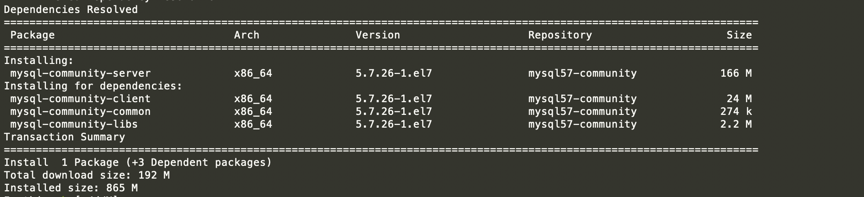
The addresses are:
http://repo.mysql.com/yum/mysql-5.7-community/el/7/x86_64/mysql-community-libs-5.7.26-1.el7.x86_64.rpm

http://repo.mysql.com/yum/mysql-5.7-community/el/7/x86_64/mysql-community-client-5.7.26-1.el7.x86_64.rpm

http://repo.mysql.com/yum/mysql-5.7-community/el/7/x86_64/mysql-community-server-5.7.26-1.el7.x86_64.rpm

http://repo.mysql.com/yum/mysql-5.7-community/el/7/x86_64/mysql-community-common-5.7.26-1.el7.x86_64.rpm
After downloading the files, upload them to the chosen directory on the server:

Install the packages in the correct order, as follows:
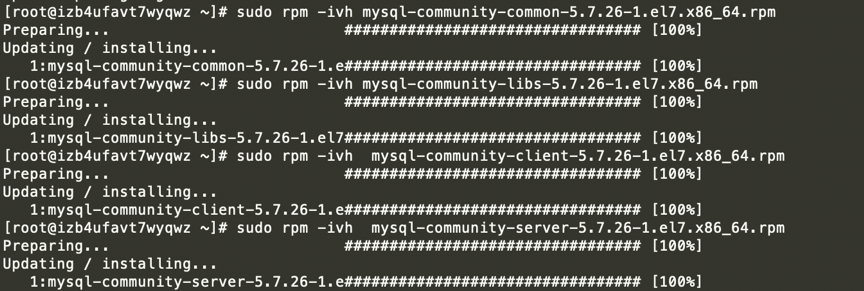
sudo rpm -ivh mysql-community-common-5.7.21-1.el7.x86_64.rpm

mysql-5.7.21]$ sudo rpm -ivh mysql-community-libs-5.7.21-1.el7.x86_64.rpm

mysql-5.7.21]$ sudo rpm -ivh mysql-community-client-5.7.21-1.el7.x86_64.rpm

mysql-5.7.21]$ sudo rpm -ivh mysql-community-server-5.7.21-1.el7.x86_64.rpm
Then start the MySQL service again.

Service mysqld restart
Because the new MySQL installation's password is unknown, run the following command to generate a temporary password:
grep "temporary password" /var/log/mysqld.log
Running this command displays the temporary password.
Then log in to MySQL and change the password:

Mysql -uroot -p
ALTER USER 'root'@'localhost' IDENTIFIED BY '********';